Crafto
- 4.6
- Rating
- 100.00M
- Installs
- Free
- Price

 Analysis by App-foxy
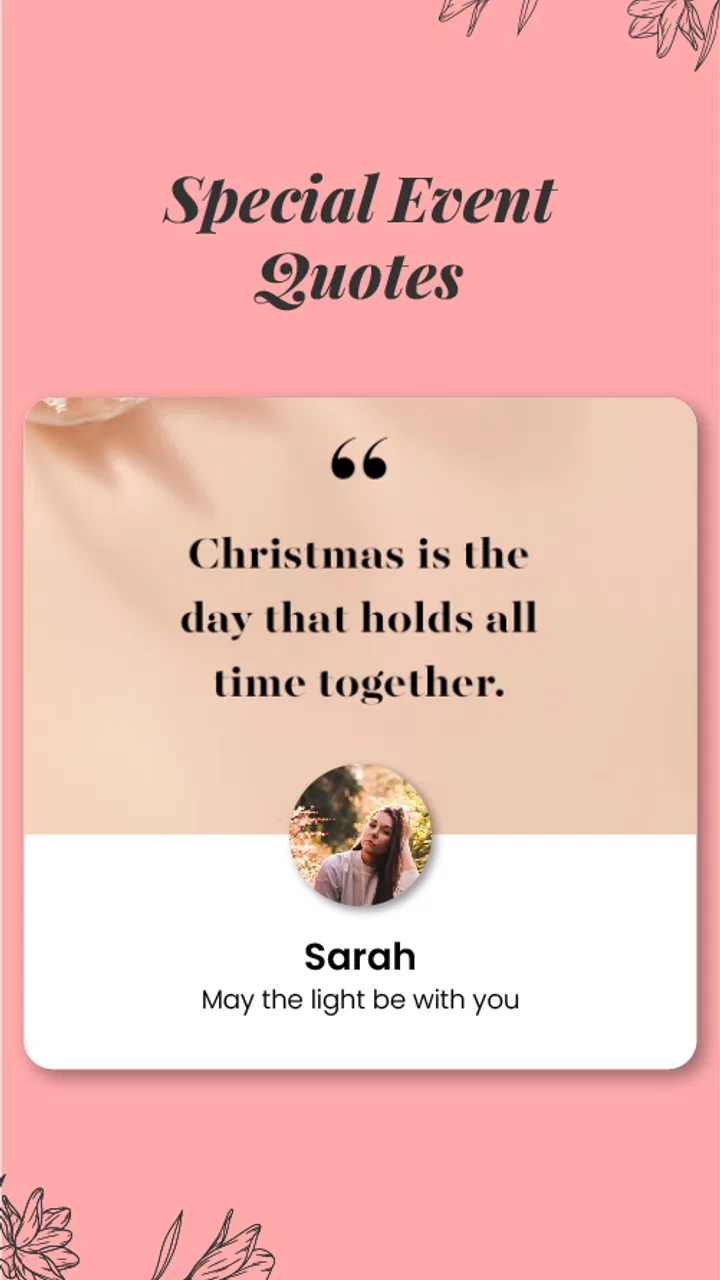
I approached Crafto as a daily visual-content app rather than a full design studio. Its main idea is simple: give you ready-made quote images that can carry your name and photos, so you can create something personal without starting with a blank canvas. That makes it appealing when you want a status image, greeting, profile post, or small daily reminder quickly.
My experience is that the app is easiest to appreciate when you treat it as a source of finished, shareable inspiration. It is not trying to replace a professional editor with detailed layer controls. Instead, it reduces the work between finding a message you like and turning it into an image that feels more like yours. The balance is convenient, although it also means creative control can feel narrower than in a traditional design app.
Where the first-use experience can become confusing
The first point of friction is understanding what Crafto is designed to do. The store summary focuses on getting quotes with your name and photos every day, but a new user may still expect a broad drawing or poster-making toolbox because the app sits in the Art & Design category. I found it more useful to begin with the available quote designs and personalization options, rather than searching immediately for advanced illustration controls.
You May Also Like

 AccuWeather: Weather Radar
AccuWeather Review: A Quick, Clear Forecast for Everyday Decisions
For everyday plans, the best forecast is the one you can understand quickly. AccuWeather makes rain timing, radar, and local conditions easy to act on, with a few trade-offs.

 Hill Climb Racing
Why Hill Climb Racing Still Turns Crashes Into One More Run
A tiny car, a bumpy hill and one more upgrade: Hill Climb Racing keeps resurfacing because its simple chaos makes every near-miss feel personal.

 AliExpress - Shopping App
AliExpress Makes Global Shopping Feel Personal, but Shoppers Bear the Risk
AliExpress turns a global marketplace into a pocket-sized discovery engine. Its reach is useful, its shopping loop compelling, and its trade-offs easy to miss.

 Lords Mobile: Kingdom Wars
Lords Mobile Is a Kingdom-Building Routine, Not a Quick Match
A case-by-case verdict on the building, battles, device demands, and social commitments that make Lords Mobile rewarding for some players and exhausting for others.

 PDF Scanner app - TapScanner
TapScanner Makes Paperwork Easier to Capture, Check, and Share
TapScanner makes scanning with a phone feel less like a rescue operation and more like a dependable step in getting work done. Its capture tools are useful, though not flawless.

 Block Blast!
Block Blast! Shows How Much a Puzzle Game Can Leave Out
A quiet grid game shows why puzzle players increasingly value instant clarity, repeatable skill and low-pressure play—and where the genre still needs to catch up.
More From Our News Desk
View All News


That distinction matters. If your goal is a quick image for a family group or social profile, a guided template approach saves time. If you want to build a composition from an empty page, carefully adjust typography, or control every visual element, you may feel restricted. I would compare it with a ready-to-use card shelf, not with a desktop publishing program compressed onto a phone.
Another possible stumbling block is the difference between browsing and creating. Looking through daily material is effortless, but the moment you want to add a personal photo or name, you need to pay attention to the editing flow and preview the result before sharing. A name that is too long, a portrait with a busy background, or a photo cropped in an unexpected place can make a design look less polished than it did in the selection screen.
My practical advice is to choose the message first and personalize second. That order prevents you from spending time preparing a photo for a design whose layout does not suit it. It also makes it easier to compare several visual styles before committing to one image.
What kind of user gets the most from it
Crafto suits people who enjoy sending a small visual message every day but do not want to design from scratch. It can be useful for someone who shares morning greetings with relatives, keeps a motivational image for a personal status, or wants a simple birthday or festival-style graphic that includes a familiar face. It also works for users who are not comfortable with complex editing controls.
I can imagine a realistic everyday use at breakfast: you browse a quote, select a family photo, check how the crop looks, add your name, and save the finished image for a messaging app. That is a much shorter process than opening a blank canvas, finding a suitable background, choosing type, adjusting spacing, and exporting the result manually.
It is less suitable for a designer who needs exact brand colors, reusable layout systems, detailed retouching, or precise control over every text element. It is also not my first choice for a business campaign where consistency across many graphics matters more than speed. In those cases, a conventional design editor with stronger layout controls is the better tool.
Setup checks that prevent avoidable trouble
Before judging the app, I would check the basics on the phone itself. Crafto supports devices running Android 7.0 or later, so an older handset may be the first reason the experience feels limited. On a compatible device, keep the operating system and the app current when possible; the current version is 11.2.2, and staying current can help avoid problems caused by an outdated installation.
Because the app works with personal names and photos, I would also prepare the material you actually want to use before beginning. Pick a photo with a clear subject and enough space around the face or object. A tightly cropped selfie may look fine in your gallery but become awkward when fitted into a quote design. A simple, well-lit image usually gives the template less visual competition.
It is worth checking storage space as well. Even when an app is free to install, saving several customized images can become inconvenient if the phone is nearly full. I would keep a little room available, especially if you plan to create a batch of images rather than one occasional greeting.
There is also a difference between the free entry point and the full cost of using an app over time. Crafto is free to download, but in-app purchases range from ten cents to nearly five hundred dollars per item. That range is broad enough that I would read each purchase screen carefully instead of assuming every design or convenience is included at no cost. If you only need occasional images, stay aware of which action you are confirming and avoid treating a purchase prompt as part of the basic setup.
Making personalization look intentional
The strongest results come from treating the photo and name as part of the composition, not as decorations added at the last second. When a quote already contains a lot of text, choose a calmer photo. When the background is busy, a shorter name tends to remain easier to read. I also recommend previewing the complete image at normal phone size; details that look acceptable while editing can become crowded once the design is viewed as a small status image.
One useful habit is to keep a small selection of dependable photos in your gallery: a clear portrait, a family image with open space, and a neutral picture that can work with different messages. This makes daily use faster and reduces the temptation to use a poor-quality image simply because it is the newest one.
Another trade-off is consistency. If you are creating a series of daily posts, using similar photo framing and a familiar name placement can make them feel connected. Crafto gives you speed through prepared designs, but you still supply the visual judgment. The app can assemble the pieces; it cannot decide whether the chosen photo matches the tone of the quote.
Recovering when the workflow does not go smoothly
When a design does not save or share as expected, I would first separate the problem into stages: selecting the quote, adding the photo, previewing the result, saving the image, and sending it elsewhere. Repeating the entire process without identifying the failing stage wastes time. If the preview itself looks wrong, the issue is probably in the selected template or crop. If the preview is correct but saving fails, the phone’s available storage or the app’s current state deserves attention.
A simple recovery routine is to close the current editing session, reopen the app, and try one uncomplicated design with a smaller photo. This is a useful test because it removes several variables at once. If the simple image works, the earlier problem may have come from the particular design or source photo rather than from the whole app.
If a photo appears incorrectly framed, choose another image before repeatedly adjusting the same one. Some pictures simply do not suit a fixed composition. A landscape photograph may lose its main subject when placed into a portrait-oriented quote card, while a close-up portrait may leave no breathing room around the text. Changing the source image is often more effective than fighting the crop.
For sharing problems, save the finished image first if that option is available in the workflow, then open the destination messaging or social app separately. This two-step method helps you tell whether the issue belongs to Crafto’s creation process or to the receiving app. It also leaves you with a copy you can reuse instead of having to rebuild the design.
I would avoid tapping purchase controls repeatedly when a screen appears slow. A delayed response can make it unclear whether an action has completed. Wait, check the screen, and review the displayed option before confirming anything. Since the app includes paid items, careful taps are especially important.
When the app is not the cause
Not every failed share, missing image, or slow preview points to Crafto. A weak internet connection can affect browsing or loading, while a nearly full phone can interfere with saving. The destination app may also be unable to accept a file temporarily, or it may display the image differently from the gallery preview. Testing the saved image in the phone’s own gallery is a useful dividing line.
Photo permissions can create another confusing moment. If the app cannot see the picture you want, check the phone’s system permission settings and confirm that the chosen image is available to the app. I would make this change deliberately rather than granting more access than you are comfortable with. If the image is visible in the picker but the final design still looks wrong, the problem is more likely the selected layout or crop.
Performance can also depend on the device. A newer phone may move through previews comfortably, while an older compatible handset may take longer to respond when handling images. That does not automatically mean the app is defective. Closing other demanding apps, keeping free storage available, and trying a smaller or simpler photo are sensible first steps.
For privacy-minded users, the important practical question is whether you are comfortable selecting the photos and personal details needed for your intended design. I would use ordinary, non-sensitive images for casual posts and avoid preparing anything that reveals information you would not want to share. The safest workflow is to decide the audience before choosing the photo, not after the image is finished.
How it compares with familiar alternatives
Compared with a blank-canvas design editor, Crafto is faster for the narrow task of producing a quote image with personal touches. You spend less time choosing fonts, backgrounds, and spacing. The cost of that speed is control: you are working within the visual logic of prepared designs rather than defining every part yourself.
Compared with simply downloading quote images from the web, the personal name and photo element gives the result more relevance. It can feel made for a particular person instead of copied from a general collection. The downside is that personalization takes a little care; a generic image may look cleaner than a rushed custom one.
Compared with a photo editor, Crafto is more focused on message-led images than on correction work. If you need blemish removal, detailed color adjustments, layered graphics, or exact export settings, I would use a dedicated editor first and bring the finished photo into a template-based workflow only if that fits your goal.
The app’s strong public reception is notable: it holds a 4.6 average from around 964 thousand ratings and has passed 100 million installs. Those figures suggest that the quick, personalized quote format has broad appeal, but they should not be treated as proof that it fits every creative need. Popularity tells me the core idea connects with many people; it does not remove the limitations of a template-centered tool.
Who should skip it
I would skip Crafto if your main reason for installing an art app is to draw, paint, build vector artwork, or create highly controlled marketing layouts. The app’s value is in reducing design effort for a particular kind of finished image. It is not the right match for someone who wants a deep creative workspace.
I would also be cautious if you dislike browsing through prepared content or if you want every useful function to remain completely free. The app is free, and its content rating is Everyone, but the presence of in-app purchases means you should decide your spending boundary before exploring optional items. Parents may still want to guide younger users around purchase confirmations, even though the age classification is suitable for everyone.
My practical verdict
Crafto works best as a quick daily image maker for people who value personal touches more than unlimited design control. I like the way it turns a quote into something shareable without demanding much technical knowledge, especially when I already have a suitable photo ready. The workflow becomes genuinely convenient once I stop expecting it to behave like a full professional editor.
The main friction is not the basic idea but the surrounding decisions: choosing a photo that survives the crop, checking the preview, separating saving problems from sharing problems, and paying attention to optional purchases. Those are manageable issues, but they matter if you want reliable results rather than random experimentation.
Developed by Kutumb App, it has been available since October 30, 2021, and its broad reach shows that this focused approach has found an audience. I would recommend it to a friend who wants personalized greetings, motivational images, or simple social posts with minimal effort. I would point that friend toward a more traditional design app if they need precise typography, advanced photo editing, or a repeatable professional brand system.
My bottom line: choose Crafto for fast, personal quote images, but judge each result by the photo, crop, and sharing workflow rather than expecting the app to do all the creative thinking for you.
FAQs for Crafto
01What is Crafto and what makes it unique?
Crafto is an innovative crafting simulation game available on both Android and iOS platforms. It combines creativity with strategic gameplay, allowing users to design and build intricate worlds using a variety of materials. What sets Crafto apart is its extensive crafting system and the flexibility it offers in terms of building mechanics, making it a standout choice for fans of sandbox games.
02Are there any in-app purchases in Crafto?
Yes, Crafto does include in-app purchases. While the game itself is free to download, players have the option to buy various items and enhancements that can enrich the gaming experience. These purchases are entirely optional and designed to help players speed up progress or access exclusive content.
03Does Crafto require an internet connection to play?
Crafto can be played offline, which is a significant advantage for users who have limited internet availability. However, some features, such as multiplayer mode and community sharing, require an internet connection. Playing offline might limit access to these interactive components, but the core gameplay remains fully accessible.
04Is Crafto suitable for children?
Crafto is designed for a wide audience, including children. It features colorful graphics and a user-friendly interface that appeals to younger players. The game encourages creativity and problem-solving, making it a great educational tool. However, parents should monitor in-app purchases and online interactions to ensure a safe environment.
05How often does Crafto receive updates or new content?
The developers of Crafto are committed to keeping the game fresh and exciting. Regular updates are released, introducing new crafting materials, challenges, and seasonal events. These updates are designed to enhance gameplay and address any bugs or issues reported by the community, ensuring a smooth and enjoyable experience.
Pros
- Intuitive user interface for easy navigation.
- Rich library of crafting tutorials available.
- Supports offline mode for crafting anywhere.
- Customizable project templates enhance creativity.
- Frequent updates with new crafting ideas.
Cons
- Limited free features
- subscription needed.
- Occasional bugs in project saving feature.
- Heavy on battery during extended use.
- Requires stable internet for optimal performance.
- Ads can be intrusive in the free version.

Crafto
Gallery